How to Track Rental Income and Expenses in Excel
Keep accurate rental records by logging income when you receive it and expenses when you pay them. Then match each rent receipt to the lease and month it pays for, so cash received and rent still owed tell the right story.
Why keep a rental cash record?
A rent payment tells you how much came in. It does not tell you how much went back out for insurance, repairs, or loan payments. Recording both sides helps you explain a busy month, spot missing transactions, and compare your notes with bank activity.
A useful record also separates the rent charged for a month from the cash actually received. A tenant can pay in installments, pay late, or pay next month in advance. Those situations should not force you to change the date money arrived.
The cash-date method works in a simple Excel ledger. The examples below show how Rental Property Portfolio Tracker — Pro also connects receipts to automatic rent charges across up to 10 rental units. Open your purchased Pro Demo.xlsx to follow along; start your own records in a copy of Pro Blank.xlsx.
All workbook images are genuine Pro Excel exports with fictional data. The ledger preview focuses on its input columns. Scroll wide screenshots sideways, or choose “View full size” to read every field.
1. Set up your properties, leases, and reporting dates
Save a working copy such as Rental-Records-2026.xlsx and keep an untouched Blank original. In desktop Excel, use Formulas → Calculation Options → Automatic. Blue cells are inputs; fixed IDs and gray calculation cells should stay intact.
Name each rental on Properties
Enter a property name beside a fixed ID from P01–P10. Address and notes are optional. One slot represents one independently leased unit. Demo includes P01 “Willow Bend” and P02 “Cedar Flat”; those IDs, rather than a newly typed property name, are selected on other sheets.
Add the tenant’s lease on Leases
Use an unused lease row, choose its Property ID, and enter the tenant, inclusive start and end dates, original monthly rent, and a due day from 1 to 31. The row’s Entry check should read Ready. The Lease ID is already supplied.
| Field | Demo value |
|---|---|
| Property ID / tenant | P01 / Alex Morgan |
| Lease start / end | January 1, 2025 / December 31, 2026 |
| Base rent / due day | $1,850 / 1 |
Normal full-month charges generate on Rent Schedule; you do not create a charge row each month. When a tenant changes, retain the old lease and add the new tenant on another row. Dates for the same property must not overlap.
A partial first or final month shows Set month amount until you enter the agreed total charge as a Month override on Rent Changes. Use the first day of that rent month. Pro does not guess proration. Numeric zero confirms a full waiver; an empty amount does not.
For an ongoing increase, add a Monthly rate row with its effective month. In Demo, L001 changes to $1,950 from July 1, 2026. January–June remain $1,850. Do not overwrite Base rent to record that increase: changing historical inputs can recalculate earlier charges, even paid months. Keep dated backups.
Finally, set Year and As-of date on Dashboard. Use 2026 and October 28, 2026 to reproduce Demo’s saved results. Blank’s initial as-of formula uses TODAY(); replace it with a fixed date when you need a stable review cutoff.
2. Record rental income when it arrives
On Transactions, enter the actual receipt date, Property ID, Category, Cash direction, positive Amount, and Description. For rent, choose Rent and Money In, then also complete Lease ID (Rent) and Rent month (1st).
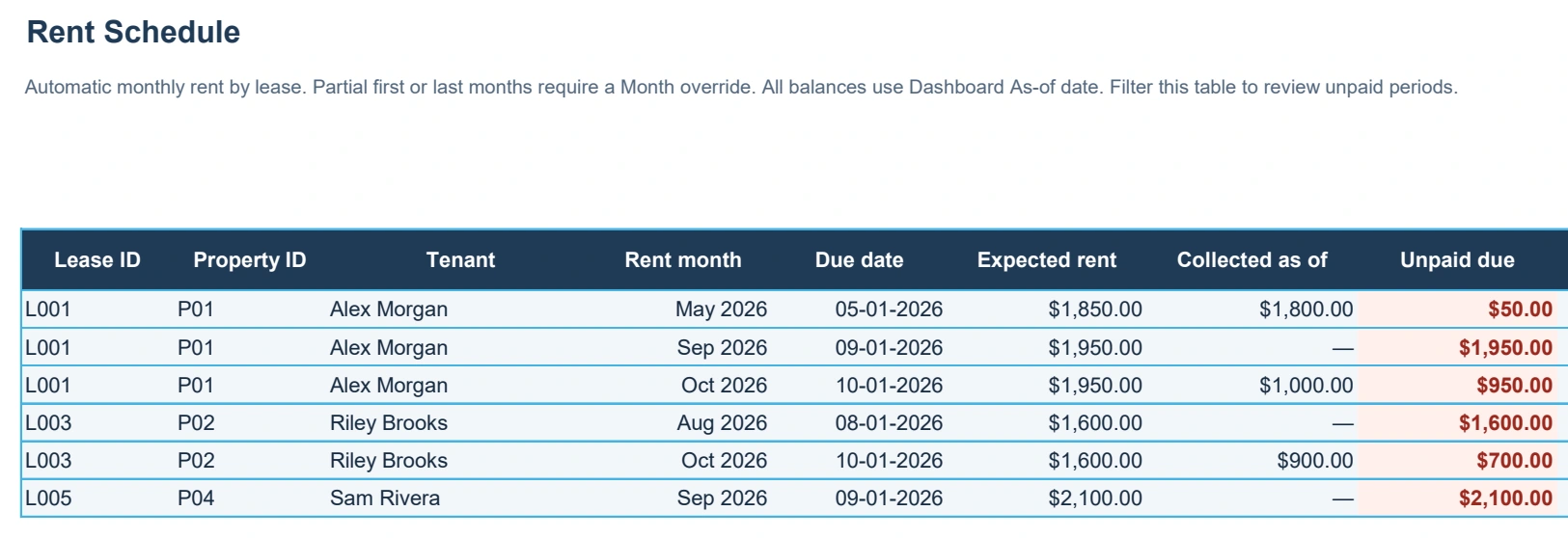
In the real Demo, Alex pays $1,000 on October 5, 2026. That row uses P01, L001, and a rent month of October 1, 2026. The cash date remains October 5. The charge is $1,950, so this receipt leaves $950 unpaid for October.
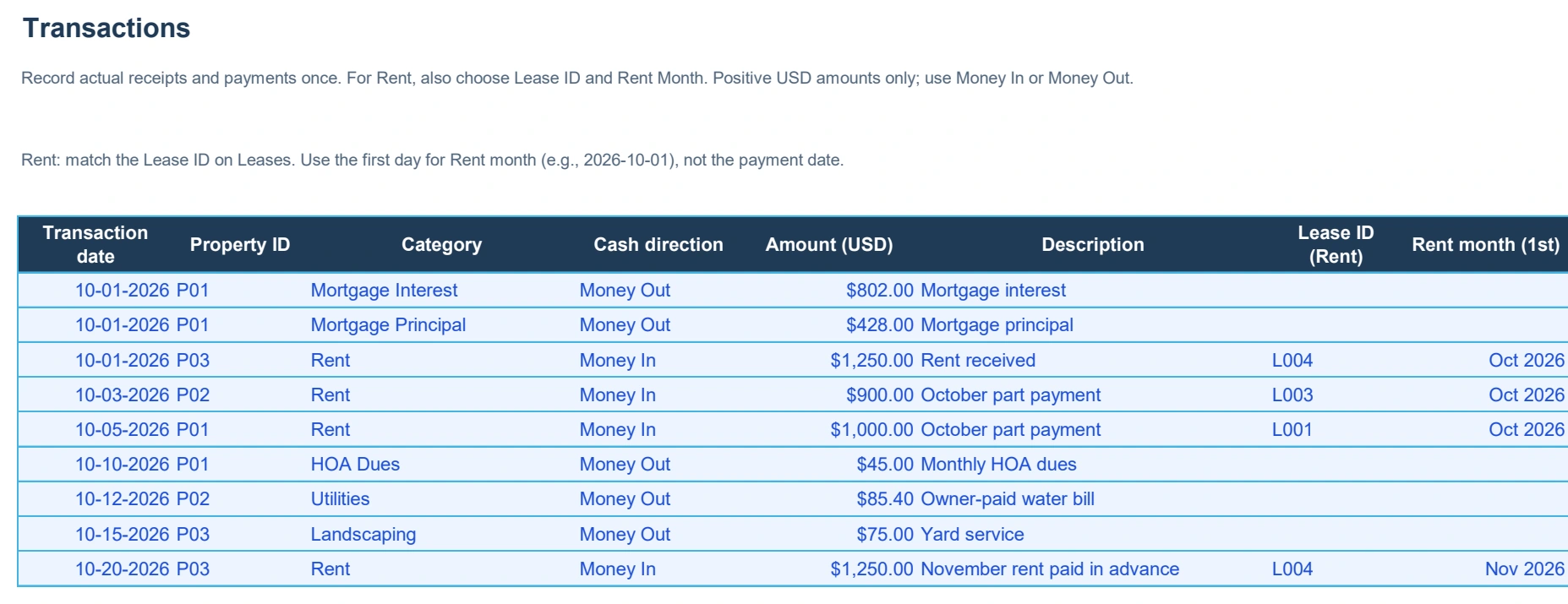
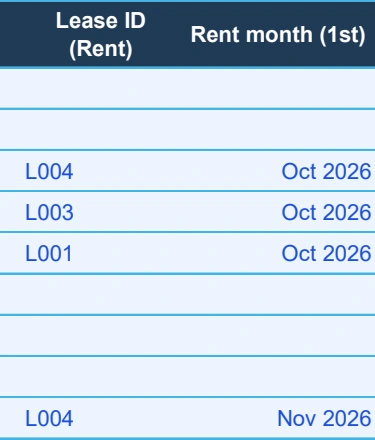
Enter rent month as a real date on the first day of the month, such as 2026-10-01 when recognized by your Excel locale. It displays as Oct 2026. Typing text such as “October rent” is not a valid date. Use the Lease ID from Leases and check that it belongs to the selected property.
Demo’s October 20 receipt illustrates the other direction: $1,250 arrives in October but is linked to L004’s November 1 rent month. It adds to October cash income while settling November’s charge. The description alone does not make this allocation; the lease and rent-month fields do.
How to track partial rent payments and unpaid rent in Excel
Keep two questions separate: How much is still owed for this rent month? and How much cash arrived this month? One answers a balance question; the other explains your cash income.
For this separate fictional illustration, January 2026 rent is $1,200, due January 1. The tenant pays $800 on January 10 and the remaining $400 on February 5. These amounts are not the saved Demo transactions.
- January 1: $1,200 due; no cash received; $1,200 remains unpaid.
- January 10: record $800 received; January’s unpaid balance becomes $400.
- February 5: record $400 received; January’s unpaid balance becomes $0.
The two receipt rows add $800 to January cash income and $400 to February cash income.
In Pro, give both rows the same Lease ID and January 1 rent month, while keeping their different cash dates. Do not add an extra $1,200 total row. That would count the receipt twice.
Set Dashboard’s As-of date to January 31 to review the $400 still owed at that point. Move it to February 5 to include the later receipt. January is then settled, but February’s own charge remains separate. The later payment does not automatically pay February rent.
The supplied Demo shows another valid split: L001’s July 2026 charge is $1,950, paid as $1,000 on July 1, $500 on July 8, and $450 on July 15. All three receipts use July 1 as their rent month.
Find the periods behind the balance
Open Rent Schedule and filter Unpaid due to amounts greater than zero. Compare Expected rent, Collected as of, Unpaid due, and Payment status. These results use Dashboard’s As-of date. Reapply filters after changing inputs.
For a receipt covering several rent months, split it into rows whose amounts add to the actual payment, allocate each part to its month, and use the same Reference. An overpayment on one month does not automatically settle another month.
See the Pro workbook’s requirements and prepared limits if you need this allocation workflow for your own rentals.
3. Record repairs, insurance, and other payments
Use the same Transactions ledger for expenses. Choose the property, the supported category that describes the payment, Money Out, a positive amount, and the date actually paid. Do not use an unpaid invoice’s date as though cash had already left.
Demo contains a $1,020 insurance premium paid January 15, 2026, and a $580 refrigerator repair paid August 19. Choose Insurance or Repairs & Maintenance respectively. Add a useful description and retain the receipt. Lease ID and Rent month are rent-allocation fields; do not use them to turn a repair into a rent charge.
The entire $1,020 insurance payment appears in January cash expenses. This cash ledger does not spread it across twelve months. That can make January look different from a month with routine bills, which is exactly what the payment record should explain.
Do not force owner transfers, capital improvements, or escrow funding into an ordinary operating category just to include every bank movement. Keep unsupported activity separately and get appropriate accounting advice for its treatment.
4. Handle refunds, refundable deposits, and loan payments
Refunds keep the original category
Demo’s $580 repair is followed by an $80 refund received September 2, 2026. Keep both rows: Repairs & Maintenance + Money Out + 580.00 in August, then Repairs & Maintenance + Money In + 80.00 in September. The net repair cash cost is $500. Do not rewrite the first payment or also count the refund as rental income.
A rent refund uses Rent + Money Out and the original Lease ID and rent month. It reduces net cash income and reopens that period’s balance. For example, returning $50 of rent requires its own actual refund date and positive $50 amount; it is not a repair expense.
Refundable deposits stay separate
Choose Refundable Security Deposit for both deposits received and returned. Demo includes P04’s $2,100 deposit received January 3 and a $900 partial return September 30, 2026. Dashboard shows deposit cash in and out separately, outside income and both cash-flow measures.
Those cash columns do not determine a legally payable deposit balance. Pro does not model deposit interest, deductions, escrow, or applying a deposit to rent. Do not invent rent receipts to make those unsupported transactions fit.
Split interest from principal
Use the lender’s statement to split a mortgage payment. The October Demo rows show $802 Mortgage Interest and $428 Mortgage Principal, both Money Out. Together they equal the actual $1,230 payment. Do not also add a third $1,230 expense row.
In this workbook, both loan components stay outside operating expenses and reduce Cash flow after debt service. Escrow funding is separate; do not count the same insurance or tax payment twice.
5. Read the monthly and annual cash-flow summary
After fixing review items, open Dashboard. Year selects the cash reporting year; As-of date cuts off transactions at that date, or December 31 if earlier. Set Monthly view to All properties or a Property ID for the monthly table and chart. The top cards and annual property table still describe the whole portfolio.
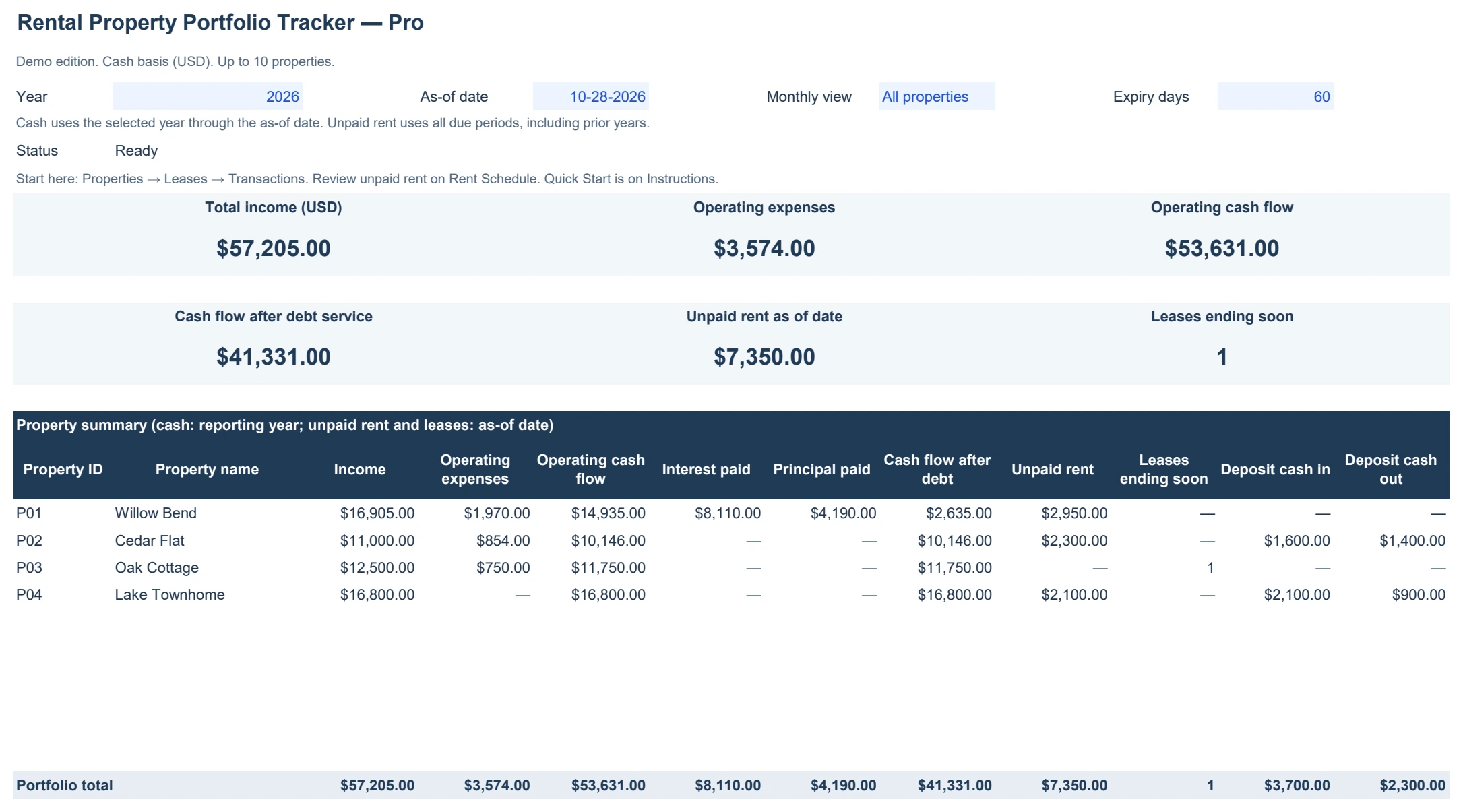
$57,205 income − $3,574 operating expenses = $53,631 operating cash flow.
$53,631 − $8,110 mortgage interest − $4,190 principal = $41,331 cash flow after debt service.
Unpaid rent follows a different time boundary: it includes all confirmed periods due by the As-of date, including prior years and expired leases, less net linked receipts received by then. Changing the cash reporting year does not erase an earlier unpaid balance. A future charge does not become overdue early.
Expiry days controls the active-lease warning window. Demo uses 60 days: L004 ends November 30, 33 days after October 28, so one lease is ending soon. This is a workbook alert, not a notice sent to the tenant.
6. Check common entry mistakes before relying on totals
- Expected rent entered as cash. Only actual receipts belong in Transactions; normal charges already generate on Rent Schedule.
- The wrong rent month. A February receipt can pay January. Check the first-of-month date, Lease ID, and property together.
- A valid cash row with an incomplete rent link. The receipt can count as cash without settling a rent period. Review both Cash entry check and Rent link check. A known property/lease mismatch is excluded until corrected.
- Text dates or negative amounts. Use genuine Excel dates, positive USD amounts with at most two decimal places, and the supplied category and direction choices. Pasting can bypass dropdown validation.
- Duplicate receipts. Two valid identical rows count twice. Pro does not automatically remove duplicates. Reconcile to bank records.
- Historical rent overwritten. Add an effective-month rate for an increase and an agreed monthly override for an exception. Changing old inputs can recalculate history.
- Formula rows changed. Use prepared blue inputs. Do not insert or delete rows, rename sheets, sort fixed-ID tables, or type over calculated results.
Check Dashboard’s Entries to review and the individual entry checks. An unconfirmed partial-month charge is unavailable, not a confirmed zero. Fix missing amounts and invalid rate changes before treating the unpaid total as complete.
At month-end, compare supported receipts and payments with the bank record, verify rent allocations, and save a dated backup. Keep invoices, leases, payment notes, and lender statements alongside your workbook.
CHOOSE A WORKBOOK FOR YOUR RECORDS
Need a rental property tracker?
This walkthrough uses Portfolio Pro, a paid workbook for up to 10 independently leased units. The $14.90 USD one-time download includes Pro Blank.xlsx, Pro Demo.xlsx, and Quick Start Guide.pdf. It is designed for desktop Excel 2019+ or Microsoft 365 with MINIFS; native testing was on Windows Excel. Other spreadsheet apps and Mac, web, or mobile Excel were not independently verified.
The guide is free to read. Creem handles checkout and delivery after successful payment. Review the product’s compatibility and limits before purchasing; Pro does not collect rent, sync a bank, send reminders, or prepare tax returns.
The former Free Edition files are no longer distributed. Existing copies have a different layout; their archived English guide remains available. The steps and screenshots above describe Pro.