How to Price a Landscaping Job in Excel
A worked example from your own costs to a customer quote — and from the accepted budget to actual job profit.
To price a landscaping job from your costs, calculate materials, loaded labor, equipment and other direct costs, allocate overhead, then divide that total by 1 minus your target project margin. Review the scope and customer tax before sending the quote.
This walkthrough uses SheetLuma’s Landscaping Estimate & Job Profit Tracker. The figures come from its fictional Demo workbook. They explain the calculation; they are not market prices, recommended margins or a real customer’s results.
1. Start with your own costs
Use Blank.xlsx for your business. Save a reusable master with your rates, then save a separate copy for each job. Yellow cells with blue text are inputs; gray cells calculate.
On Job, set your base wage, employer burden, overhead method and target margin. The demo uses:
| Input | Illustrative value | What it means |
|---|---|---|
| Base wage | $25 per person-hour | One person’s hourly labor cost before burden |
| Employer burden | 28% | Your allowance for applicable employer labor costs |
| Loaded labor | $32 per person-hour | $25 × 1.28 |
| Overhead | $10 per person-hour | The chosen job allocation method |
| Target project margin | 25% | Profit after direct costs and allocated overhead, divided by pre-tax price |
Two people working four hours use eight person-hours. Include your own field labor. If your hourly labor input already includes employer burden, use 0% burden to avoid counting it twice.
Overhead covers business costs you need to recover through jobs. Choose Per person-hour or Fixed per job in this workbook. Do not add the same overhead again in service costs or the actual-cost ledger. NALP’s Corporate Finance guide, printed pages 37–38 discusses cost-based pricing and allocating overhead through labor hours; choose assumptions from your own business records.
2. Build a service recipe
On Rates, enter a unique service name, service unit, material purchase unit, material factor, purchase price, waste allowance, purchase increment, person-hours per unit and equipment cost per unit.
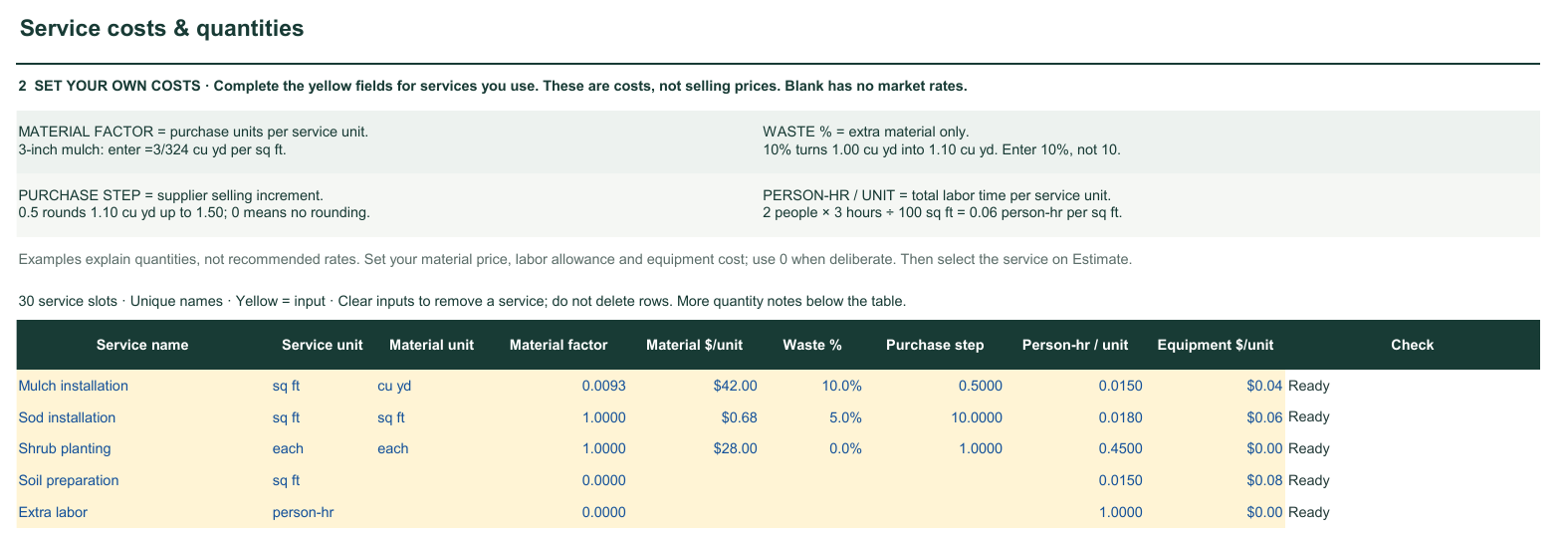
Demo assumptions only. Replace the material prices, productivity and other inputs with your own costs.
For the demo’s 600 sq ft of mulch at 3 inches deep, the material factor is 3/324 cubic yards per square foot. With 10% waste and purchases rounded up to the next half-yard, the workbook calculates:
| Mulch cost component | Calculation | Amount |
|---|---|---|
| Material quantity | 600 × (3/324) × 1.10, rounded up to 0.5 cu yd | 6.5 cu yd |
| Material cost | 6.5 × $42 | $273.00 |
| Labor | 600 × 0.015 person-hours × $32 | $288.00 |
| Equipment | 600 × $0.04 | $24.00 |
| Direct cost | $273 + $288 + $24 | $585.00 |
| Allocated overhead | 9 person-hours × $10 | $90.00 |
| Pre-tax mulch quote | ($585 + $90) ÷ (1 − 25%) | $900.00 |
Check depth, site conditions and purchasing increments for the actual job. Purchase rounding applies to each estimate line separately. Avoid adding delivery in both the material price and a separate delivery line.
3. Enter quantities and review the estimate
On Estimate, select a service, enter its quantity and refine the customer description. The demo combines mulch, sod, shrubs and soil preparation. One-time lines add delivery, disposal and subcontracting at your cost.
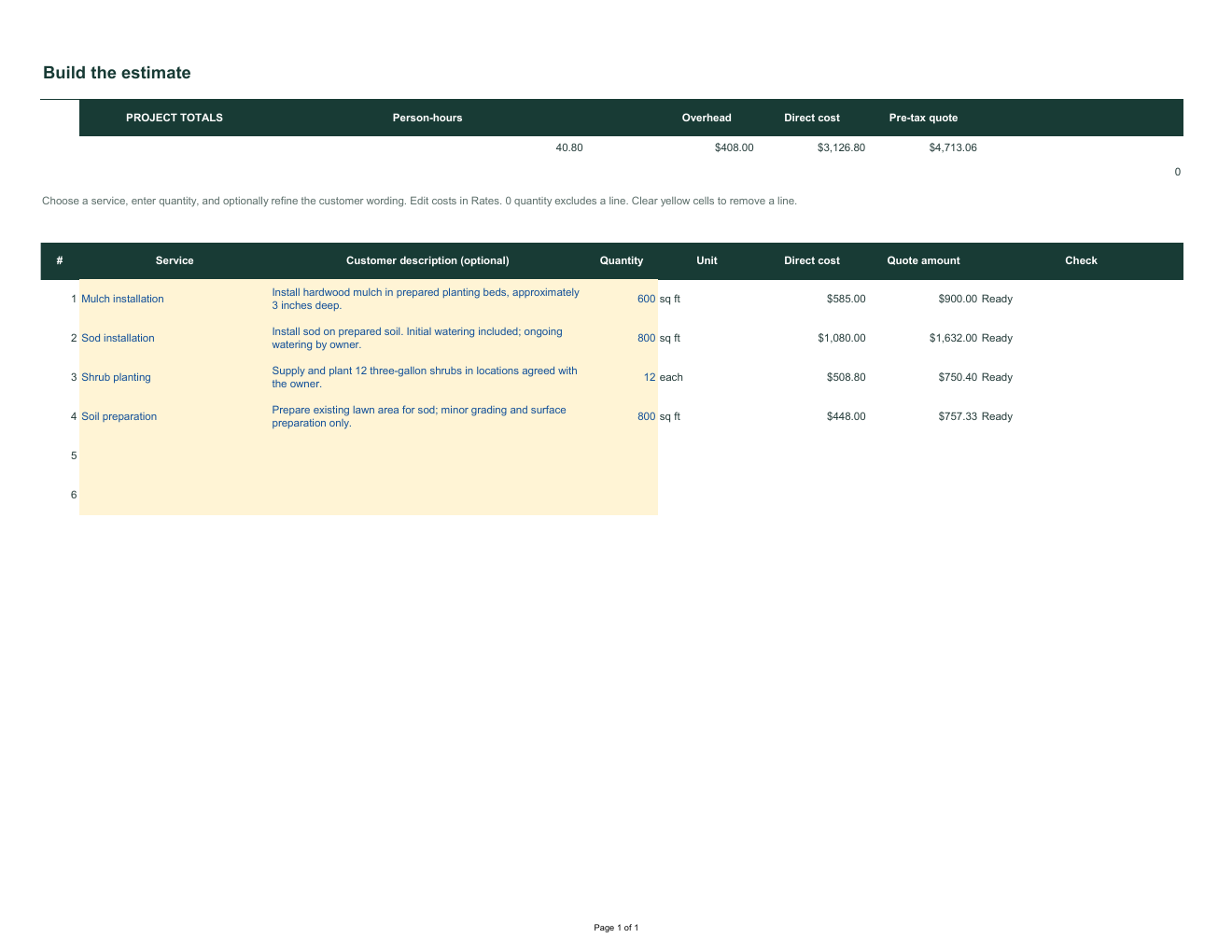
Service quantities feed the cost calculation. The project totals also include the demo’s one-time direct costs.
The complete estimate has $3,126.80 direct cost, $408.00 overhead and a $4,713.06 pre-tax quote. Each quote line rounds to cents, so dividing the combined cost by 0.75 may differ by a cent from the sum of rounded lines.
Try a scope change in a copy of Demo.xlsx: change the mulch quantity in Estimate!D10 from 600 to 800. With all other assumptions unchanged, the mulch quote becomes $1,190.67, and the project pre-tax quote becomes $5,003.73. Restore 600 before following the original quote and profit example below. Also update the written scope when preparing a revised customer quote.
4. Use margin correctly
The workbook uses:
Pre-tax quote = (direct cost + allocated overhead) ÷ (1 − target margin)
Margin and markup use different denominators. For a $1,000 cost, a 20% margin requires a $1,250 selling price: $250 profit divided by $1,250 is 20%. Adding 20% to cost produces $1,200 and a 16.7% margin.
Enter the target margin once. The workbook’s equivalent markup is a calculated result, not an additional charge.
5. Review the customer quote
Complete the customer details, job address, dates, included work, exclusions and terms on Job. Resolve the workbook’s highlighted checks. Review customer sales tax for the particular job, enter the dollar amount—including 0 when appropriate—and select Confirmed. The workbook does not determine taxability or a tax rate.
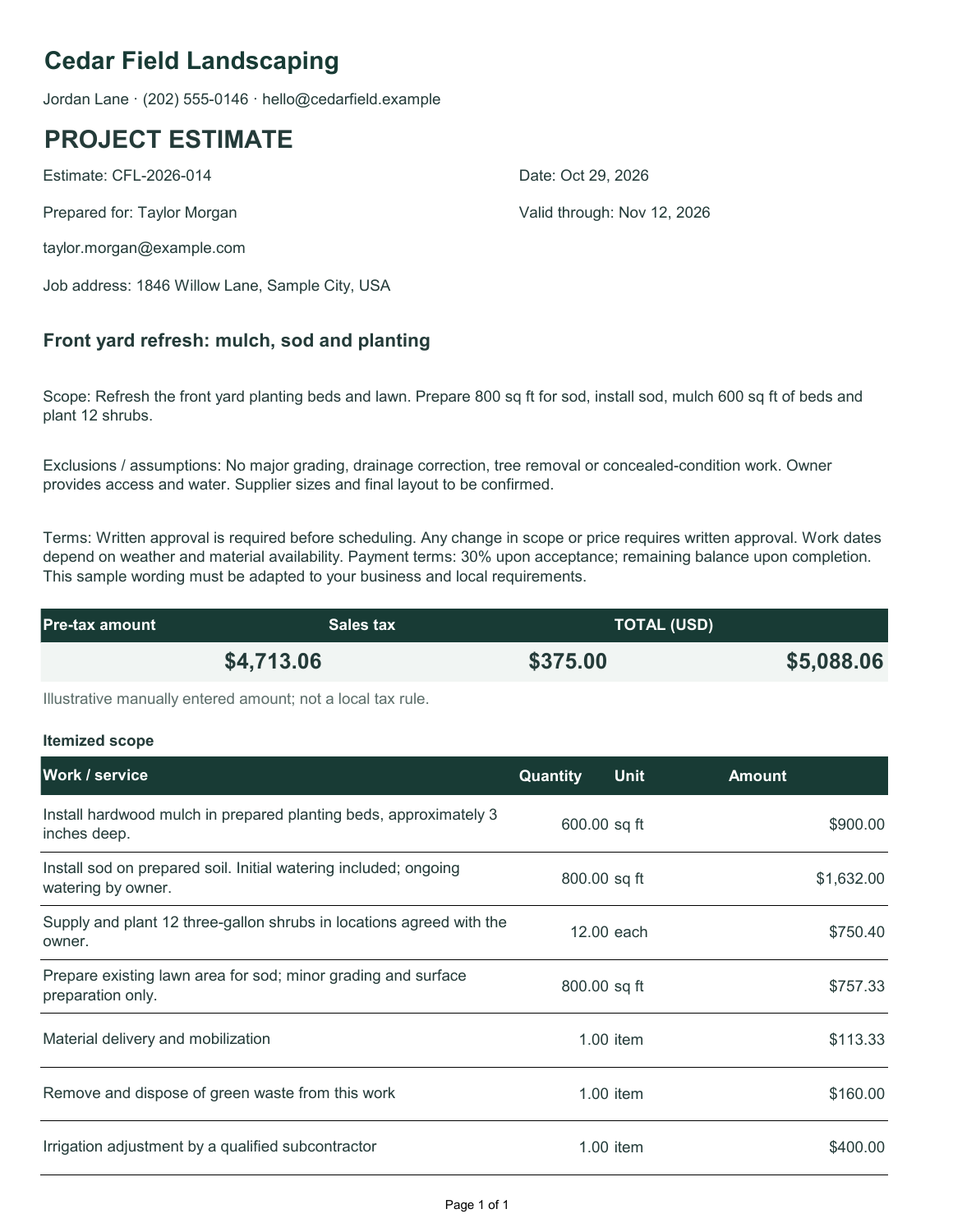
The $375 tax is manually entered sample data, not a local tax calculation. Customer tax is excluded from project revenue and profit.
Review Quote and export only that worksheet to PDF. Check every PDF page before sending it. Send the PDF to the customer; keep the full workbook private because it contains your costs, rates and margin.
6. Save approval, then compare actual costs
After approval, save four fixed values on Job: the accepted pre-tax amount, acceptance date, direct-cost budget and overhead budget. Use the agreed price. Copy C15 → H13 and C16 → H14 with Paste Values, rather than ordinary paste or formulas. Save the accepted PDF and workbook.
On Actuals, enter direct costs incurred, even if not yet paid. For a supplier refund, choose Credit and enter a positive amount. Do not enter customer payments, customer tax or overhead in this ledger.
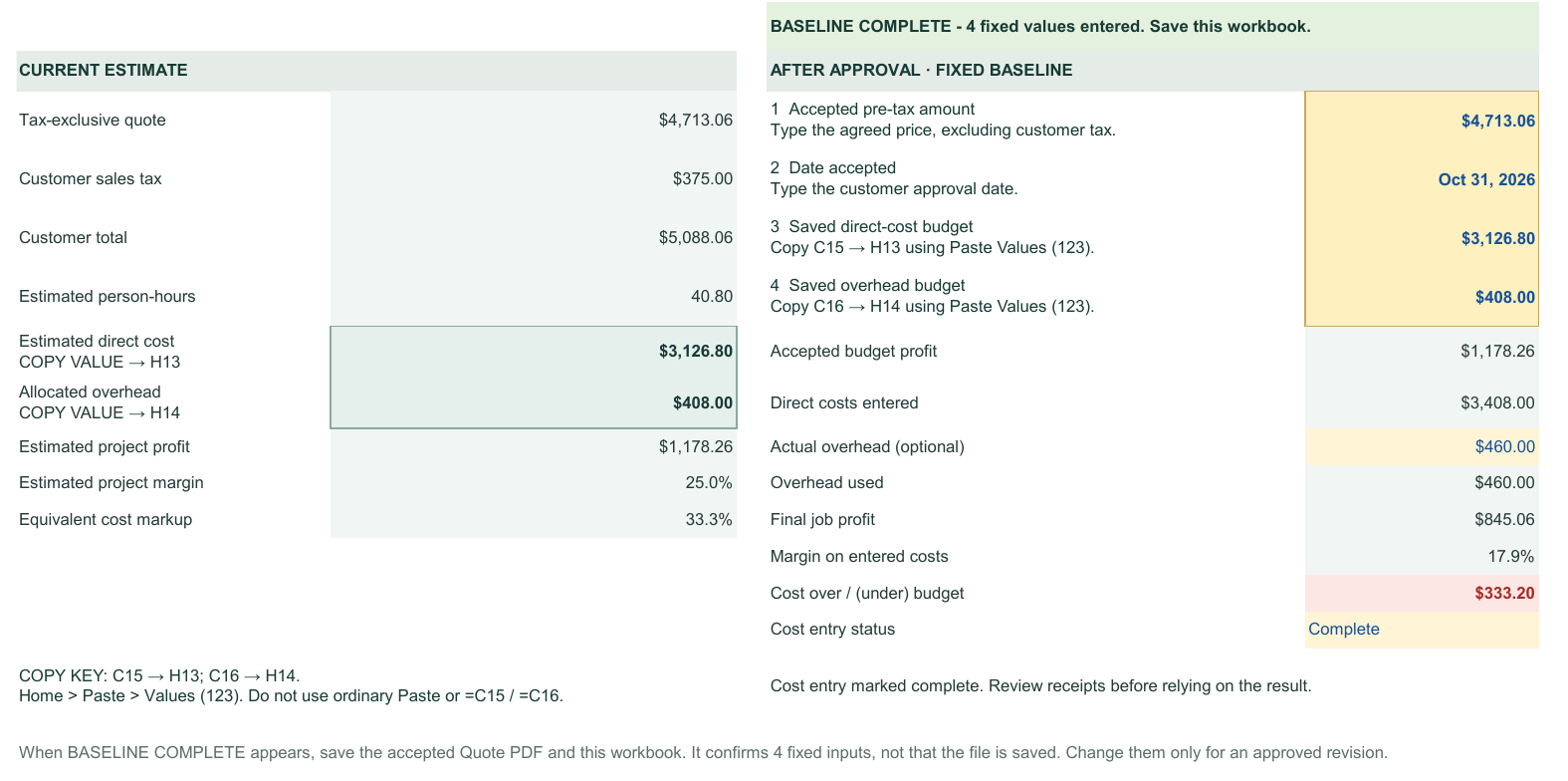
The fictional completed job earned less than its estimated profit because costs exceeded the saved budget.
In the original demo, actual direct costs are $3,408.00 after a $28 supplier credit. Actual overhead is $460.00. The result is:
$4,713.06 accepted pre-tax amount − $3,408.00 direct costs − $460.00 overhead = $845.06 job profit.
That is approximately 17.9% of the accepted pre-tax price, compared with the original 25% target. Mark the job Complete only after checking all costs and credits. This profit figure does not measure customer payments received or taxable income.
Before your next estimate
Confirm your scope, supplier quantities, person-hours, overhead allocation and margin. Review the customer PDF, save the accepted baseline and keep the cost ledger current. Each step helps you compare the job you priced with the work you actually delivered.
The Landscaping Estimate & Job Profit Tracker includes Blank.xlsx, Demo.xlsx and a five-page Quick Start PDF for $19 USD, paid once. It is a workbook for one job at a time, tested in Microsoft 365 Excel for Windows. It is not an invoicing, payroll or tax-filing system. See the product page for compatibility details and the full workbook previews.