How to Check Equipment Rental Availability in Excel
Check a numbered asset's dates, resolve a shared return-day conflict, and follow up on overdue equipment before accepting the next rental.
Before confirming an equipment rental, check the specific physical asset for the customer’s entire requested date range. In a calendar-day workbook that includes both boundary dates, two bookings overlap when the existing start is on or before the requested end and the existing occupied end is on or after the requested start. Also check for unreturned overdue equipment, service holds, and incomplete records.
A machine sitting in your yard today may already be reserved for next week. A future due date also does not guarantee that an overdue machine has come back.
This walkthrough uses the SheetLuma Equipment Rental Booking & Availability Tracker, a Microsoft Excel workbook for small equipment and tool rental businesses. The examples and screenshots use fictional Demo data with a fixed review date of October 31, 2026. They are not customer bookings or business results.
1. Give each physical asset its own ID
Use one Equipment ID for one actual machine. For example, EQ-002 identifies a particular mini skid steer. If you own two identical machines, give them separate IDs rather than putting both under one name.
In this workbook, each booking holds one numbered asset. Register the equipment and customer first, then select those IDs when entering the booking. Keep IDs stable after they have been used in records.
For the example below, open a working copy of Demo.xlsx. Leave its fixed review date unchanged so the overdue warnings match the screenshots. In your own working file, leave Settings → Review date override blank to use today.
2. Check the requested dates on Availability
Open Availability. Enter 11/03/2026 in Start date (B5) and 11/04/2026 in End date (E5). These are November 3–4, using the workbook’s US date format. Enter real Excel dates without time values.
Read the exact asset’s result, including Overlaps, Overdue out, Availability, and Data check. In the unchanged Demo:
| Asset | Result for November 3–4 | What to investigate |
|---|---|---|
| EQ-001, plate compactor | AVAILABLE | No booking occupies this window; the asset is in service. |
| EQ-002, mini skid steer | UNAVAILABLE; 2 overlaps | Two reservations touch the requested window. |
| EQ-004, towable generator | UNAVAILABLE; 1 overdue out | An unreturned rental blocks future dates; a later reservation is also recorded. |
| EQ-007, floor sander | OUT OF SERVICE | The equipment register has In service? set to No. |
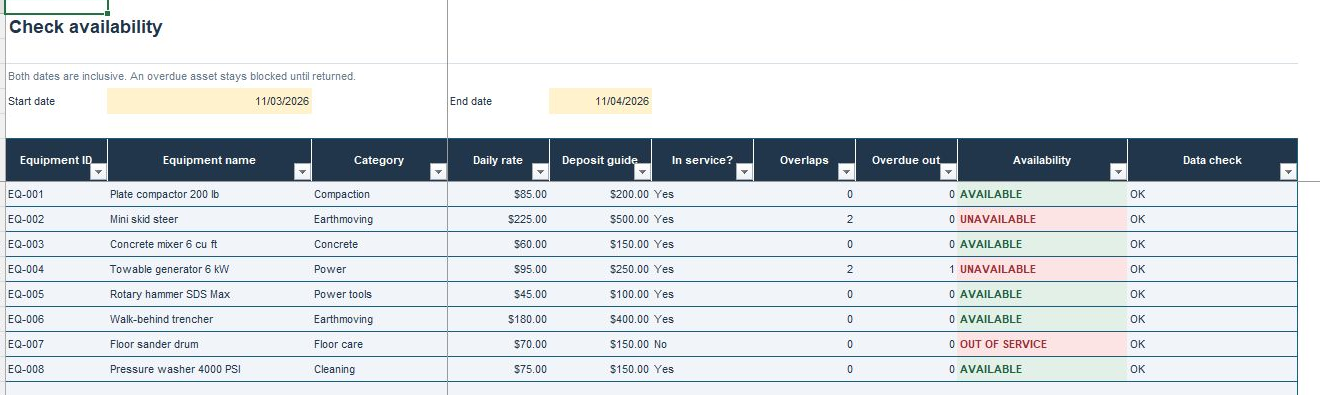
REVIEW DATA means a related equipment or non-cancelled booking record needs correction. Resolve the input issue before promising the asset, even if the dates appear free.
3. Look at both bookings, including their boundary dates
In Bookings, inspect the Conflict column. Filter for entries containing CONFLICT, then compare the rows for the same Equipment ID.
The Demo contains these reservations:
| Booking | Asset | Start date | Due date | Conflict |
|---|---|---|---|---|
| BK-1004 | EQ-002 | November 2, 2026 | November 4, 2026 | CONFLICT (1) |
| BK-1005 | EQ-002 | November 4, 2026 | November 5, 2026 | CONFLICT (1) |
November 4 belongs to both bookings. This workbook includes the start and due dates and does not support same-day turnover. November 5 is the first day after BK-1004’s scheduled occupied range, provided the machine returns on time and is ready to rent.
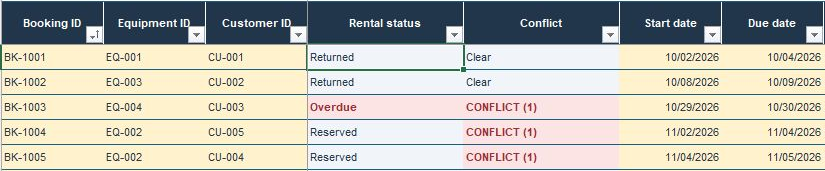
To resolve an actual conflict, agree on different dates with a customer, assign another available physical asset, or fully cancel an unused reservation before pickup. Do not merely hide a warning or change an Out rental to Returned to free the calendar.
Try a date change in your Demo copy
With filters cleared, find BK-1005. Change its Start date from November 4 to November 5, and its Due date from November 5 to November 6. In the original Demo layout, these inputs are F12 and G12; find the Booking ID again if you have sorted the table.
Both skid-steer rows should now show Clear, since BK-1004 ends November 4 and BK-1005 starts November 5. The overall conflict count should fall from four rows to two, rather than zero: the generator’s separate problem still exists.
Then enter November 7 as both the Start date and End date on Availability. EQ-002 should be AVAILABLE in this example, assuming no other records have changed. Checking November 5–6 will still show UNAVAILABLE because your rescheduled BK-1005 legitimately holds those days. An existing reservation appears in availability even when it has no conflict with another booking.
These are expected results for the described exercise. The screenshots show the original Demo, before these edits.
4. Treat an overdue return as an unresolved commitment
The Demo generator, EQ-004, is Out on BK-1003, which was due October 30. At the October 31 review date, it is overdue. BK-1011 reserves that generator for November 3–4.
Moving the next booking farther into the future does not confirm that the generator will be back. An overdue Out item remains blocked for every future window until its actual return is recorded.
Contact the customer and resolve the real situation. After the machine comes back, change the booking’s Stage to Returned and enter its actual Return date. Recheck later reservations: a late return may overlap a reservation that originally looked safe. A promised return date is not an actual return.
For a pre-pickup cancellation, use Cancelled. The workbook removes that booking’s occupied dates and zeroes its charges, but does not record cash refunds for you. Record any money actually refunded separately in Payments.
5. Recheck before confirming, and keep one working file
Enter a new booking only after checking the requested window. Use a unique Booking ID, select the registered equipment and customer IDs, and enter the agreed dates, rate, tax rate, and required deposit. Use explicit zero where appropriate rather than leaving required numeric inputs blank. Then read Input check and Conflict again.
Keep Reserved for an item awaiting pickup, change it to Out when handed over, and record the real return when received. Recheck availability after every date or status change. Use the Dashboard for remaining overdue returns and conflict rows.
The workbook provides warnings, not a real-time reservation lock. Use one authoritative file and one editor at a time. If your process requires simultaneous staff reservations, hourly handoffs, pooled stock quantities, or online booking, this version does not cover that workflow.
Common questions
Why are there four conflict rows but only two conflicts in the Demo?
Each affected booking row is counted. Two skid-steer rows form one pair; two generator rows form another. Four affected rows represent two pairs in this specific Demo, not four independent booking incidents. Larger groups of overlapping bookings need individual review.
Can I rent an asset again on its return day?
Not in this calendar-day workbook. Occupied date boundaries are inclusive, and same-day turnover is blocked. Rentals based on exact pickup times or rolling 24-hour periods need a different scheduling model.
Does an early return automatically reduce the rental charge?
No. Availability releases after the actual return date, while billing keeps the originally agreed minimum rental period. An agreed price reduction is entered as a Discount. Scheduling availability and billable days answer different questions.
What if the warning does not change after I edit a date?
Check the other rows for the same asset, the booking’s Input check, and the review date in Settings. Confirm Excel uses Automatic calculation. A remaining overdue Out record can still block future dates even after another reservation is rescheduled.
Use the prepared workbook
The Equipment Rental Booking & Availability Tracker includes Blank.xlsx, Demo.xlsx, and a six-page English User Guide for a $19.90 USD one-time purchase. It also keeps rental payments and settled deposits separate.
Each file has prepared capacity for 100 assets, 200 customers, 300 bookings, and 1,000 payment entries. It has no macros or external connections and was tested in Microsoft Excel desktop for Windows. Excel is sold separately; other platforms have not been individually verified. It does not create invoices, process payments, or provide a maintenance calendar.